

How to fix Bluetooth missing from Windows 11 Settings and Device Manager
Bluetooth gone from Settings and Device Manager? The adapter is usually stuck rather than broken. A full shutdown and a 30-second power drain fixes it for most people.
 HanaHow3 minute read
If the Bluetooth switch has gone from Settings and there’s no Bluetooth section in Device Manager either, Windows can’t see the adapter at all. It’s usually stuck rather than broken, and the first fix takes about a minute.
Where has Bluetooth gone missing?
Do a full shutdown and drain the power
This fixes it for most people and takes about a minute.
- Open Start, select the power icon, then hold Shift and click Shut down. Keep holding Shift until the screen goes dark.
- Unplug the power cable and any dock or USB hub.
- Hold the power button for 30 seconds, plug back in and switch on.
Look in Settings → Bluetooth & devices. Is the switch back?
See these steps with a pictureDoes Device Manager show Bluetooth now?
Right-click Start, open Device Manager and look for a Bluetooth section.
Turn on the Bluetooth Support Service
Settings can’t show the switch if the service that runs Bluetooth isn’t running.
- Open Start, search for Services and open it.
- Double-click Bluetooth Support Service.
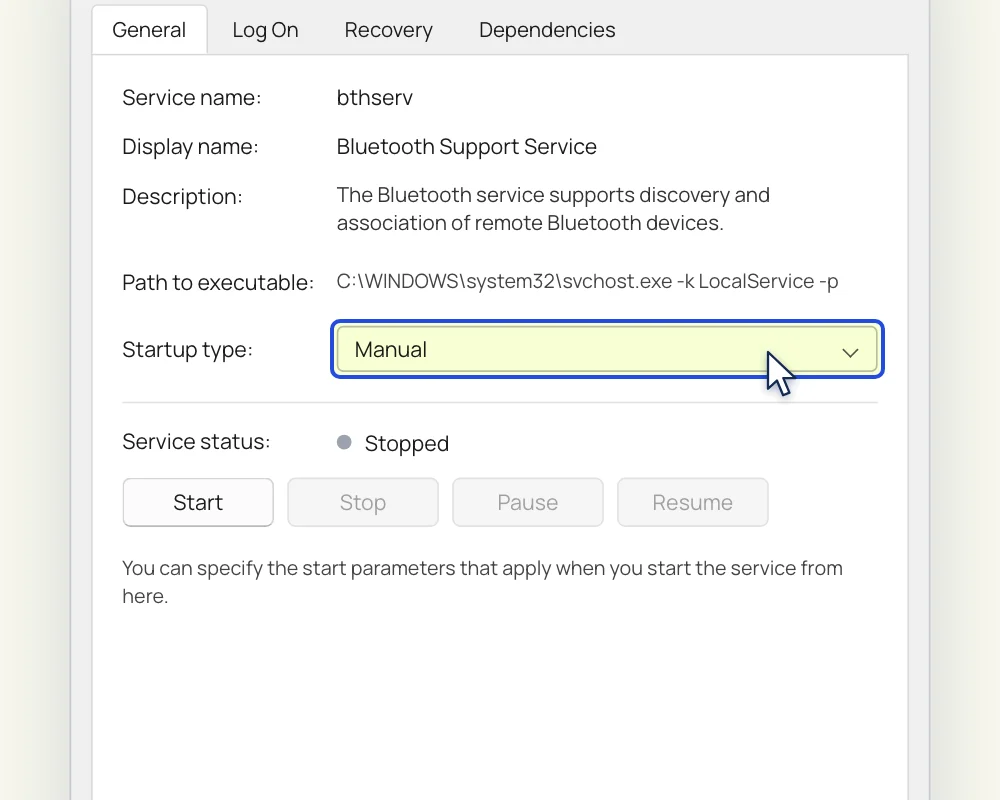
- Set Startup type to Automatic, click Apply, then Start.
Is the switch back in Settings?
See these steps with a pictureReinstall the adapter
Windows puts it straight back after a restart.
- Right-click Start and open Device Manager.
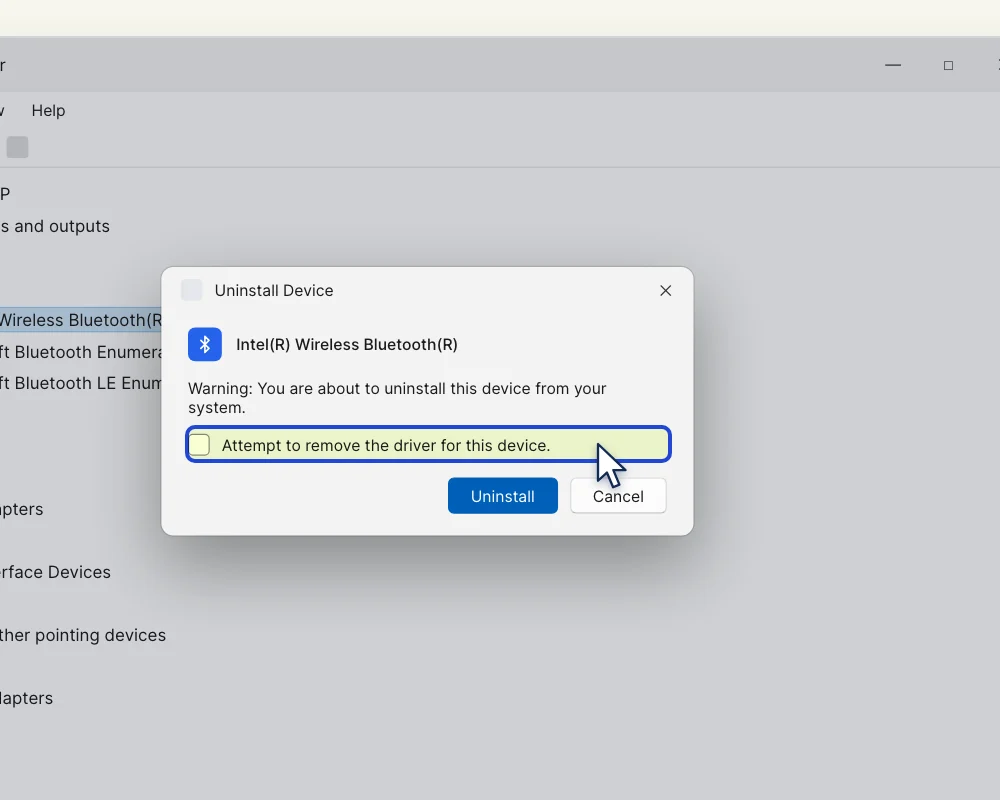
- Expand Bluetooth, right-click your adapter (often Intel, Realtek or Qualcomm) and select Uninstall device.
- Leave Attempt to remove the driver unticked, click Uninstall, then restart.
Is the switch back in Settings?
See these steps with a pictureThree things left to try
- Update the driver from your laptop or PC maker’s support site, for your exact model.
- Check the BIOS. Bluetooth or wireless can be switched off there. It’s often F2, F10 or Delete while the computer starts.
- Use a USB Bluetooth adapter if the built-in one has failed. They’re small and cheap.
Still stuck? Tell us your laptop or PC model and what you’ve tried at [email protected].
Bluetooth’s back. Now stop it happening again.
Turn off Fast Startup so every shutdown is a full one and a stuck adapter can’t carry over.
- Open Control Panel, then Power Options.
- Select Choose what the power buttons do, then Change settings that are currently unavailable.
- Untick Turn on fast startup and click Save changes.
Why it disappears
By default, Shut down in Windows 11 doesn’t fully switch the computer off. Fast Startup saves part of the system to disk so the next start is quicker. If the Bluetooth chip got stuck, it can come back stuck every time you turn the computer on.
A full shutdown and a short power drain reset the chip properly.
Do a full shutdown and drain the power
- Open Start and select the power icon.
- Hold Shift on your keyboard and click Shut down. Keep holding Shift until the screen goes dark. This is a full shutdown that skips Fast Startup.
- Unplug the charger or power cable, and any dock or USB hub.
- Hold the power button for 30 seconds, then let go.
- Plug the power back in and switch the computer on.
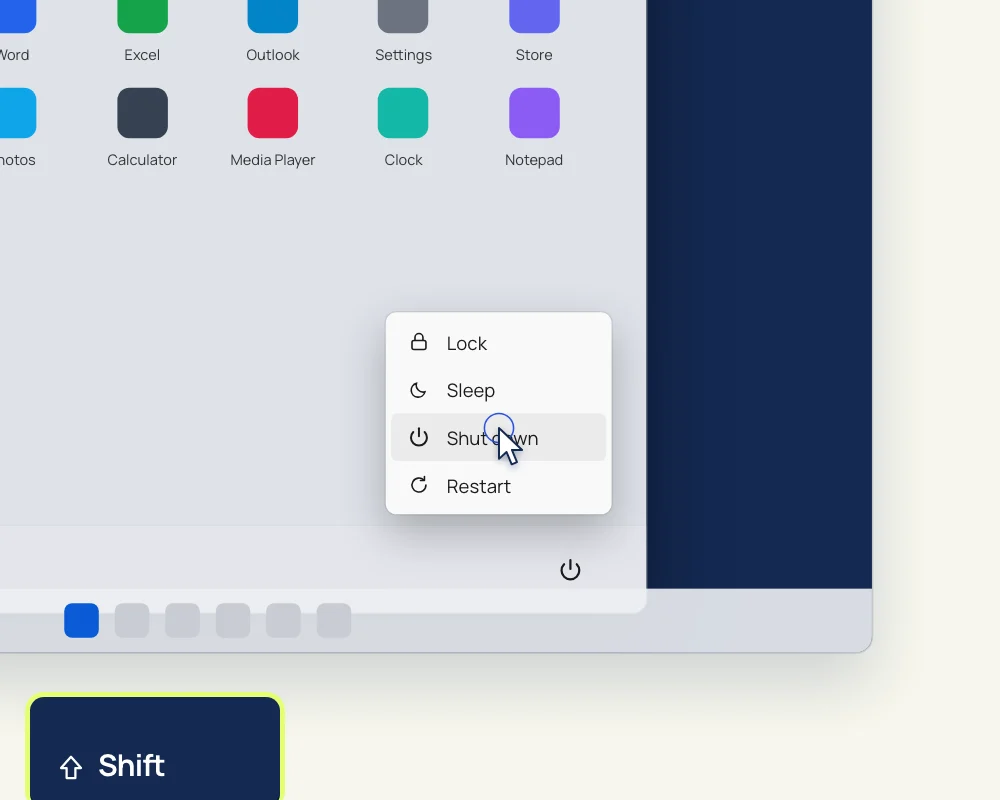
Check Settings → Bluetooth & devices. For most people the switch is back.
Stop it happening again
Turning off Fast Startup means every shutdown is a full one, so a stuck adapter won’t carry over.
- Open Start, search for Control Panel and open it.
- Open Power Options. If you can’t see it, set View by to Large icons, or go to Hardware and Sound first.
- Select Choose what the power buttons do.
- Click Change settings that are currently unavailable.
- Untick Turn on fast startup (recommended).
- Click Save changes.
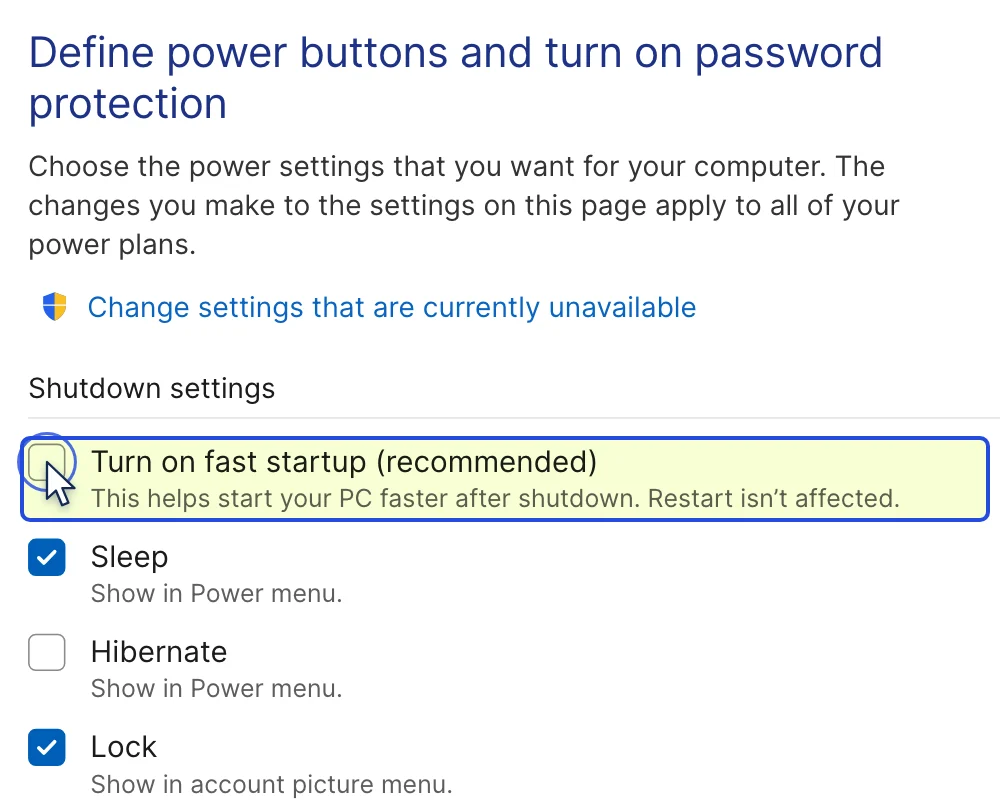
Your computer may take a few seconds longer to start. Restart isn’t affected.
If the switch is still missing
If Bluetooth is back in Device Manager but there’s still no switch in Settings, check the service that runs it.
- Open Start, search for Services and open it.
- Double-click Bluetooth Support Service.
- Set Startup type to Automatic.
- Click Apply, then Start.
Reinstall the adapter
If Bluetooth is still playing up, reinstall the adapter. Windows puts it straight back after a restart.
- Right-click Start and open Device Manager.
- Expand Bluetooth and right-click your adapter. It’s usually named after its maker, such as Intel, Realtek or Qualcomm.
- Select Uninstall device.
- Leave Attempt to remove the driver for this device unticked, then click Uninstall.
- Restart the computer.
If it’s still missing
- Update the driver: download the latest Bluetooth driver for your exact model from your laptop or PC maker’s support site.
- Check the BIOS: Bluetooth or wireless can be switched off in the BIOS or UEFI settings. The way in varies by maker; it’s often F2, F10 or Delete while the computer starts.
- Use a USB adapter: if the built-in adapter has failed, a small USB Bluetooth adapter is a cheap way round it.
- A USB Bluetooth adapter
If the adapter inside your computer has failed, a small one in a free USB port takes over. TP-Link says Windows 11, 10 and 8.1 set up its UB500 by themselves, with no driver to install.
TP-Link UB500 on Amazon
Amazon links are affiliate links. If you buy through one, HanaHow gets a small commission and you pay the same. As an Amazon Associate I earn from qualifying purchases.
Read the video transcript
Bluetooth's just vanished? Not even in Device Manager? Yeah. Let's get it back. If it's gone from Device Manager as well, Windows can't see the adapter at all. It's usually not broken, just stuck. By default, shutting down doesn't fully switch Windows 11 off. Fast Startup saves the system to disk, so a stuck Bluetooth chip stays stuck. So hold Shift and click Shut down. That's a proper shutdown. Unplug the power, hold the power button for thirty seconds, then switch it back on. That fixes it for most people. To stop it coming back, turn Fast Startup off. Search Control Panel, open Power Options, then Choose what the power buttons do. Click Change settings that are currently unavailable, untick Turn on fast startup, and save. Back in Device Manager, but still no switch? In Services, set Bluetooth Support Service to Automatic, and click Start. Still playing up? Right-click the Bluetooth adapter, Uninstall device, leave the driver box unticked, and restart. Windows puts it straight back. Nothing at all? Get the latest driver from your laptop maker, check Bluetooth's on in the BIOS, or plug in a cheap USB adapter. That's HanaHow. See you next time.
Something not quite right?
Let us know